Create a job title first. Each title can have its own resume, selected content, visual style, and public link. In the Resume Builder, use the role dropdown to load that role’s saved version.
Add skills, projects, experience, education, certificates, and languages in their own pages. Tags connect a role to relevant content.
cloudphpnetwork
Give the same tag to a role and an item. Matching items are suggested in the builder; more shared tags means a stronger suggestion. Choose whether an item is always included, suggested by tags, or manual only.
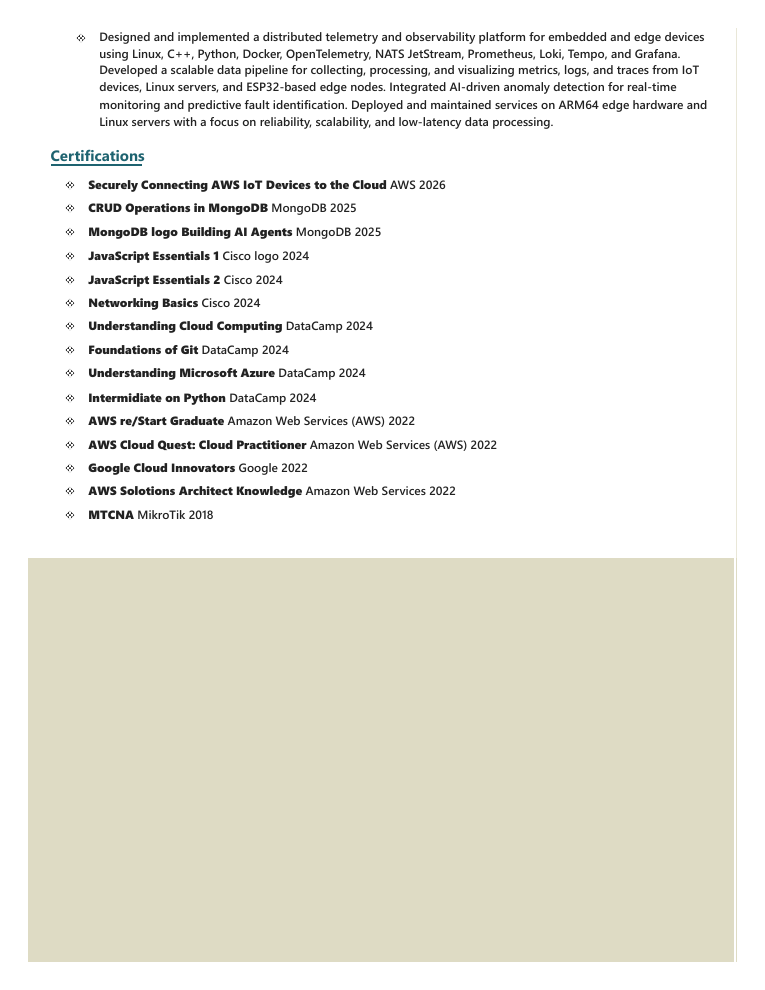
Example: a focused project summary and a clean certification list in the finished resume.Manage content and tags3
Arrange sections and icons
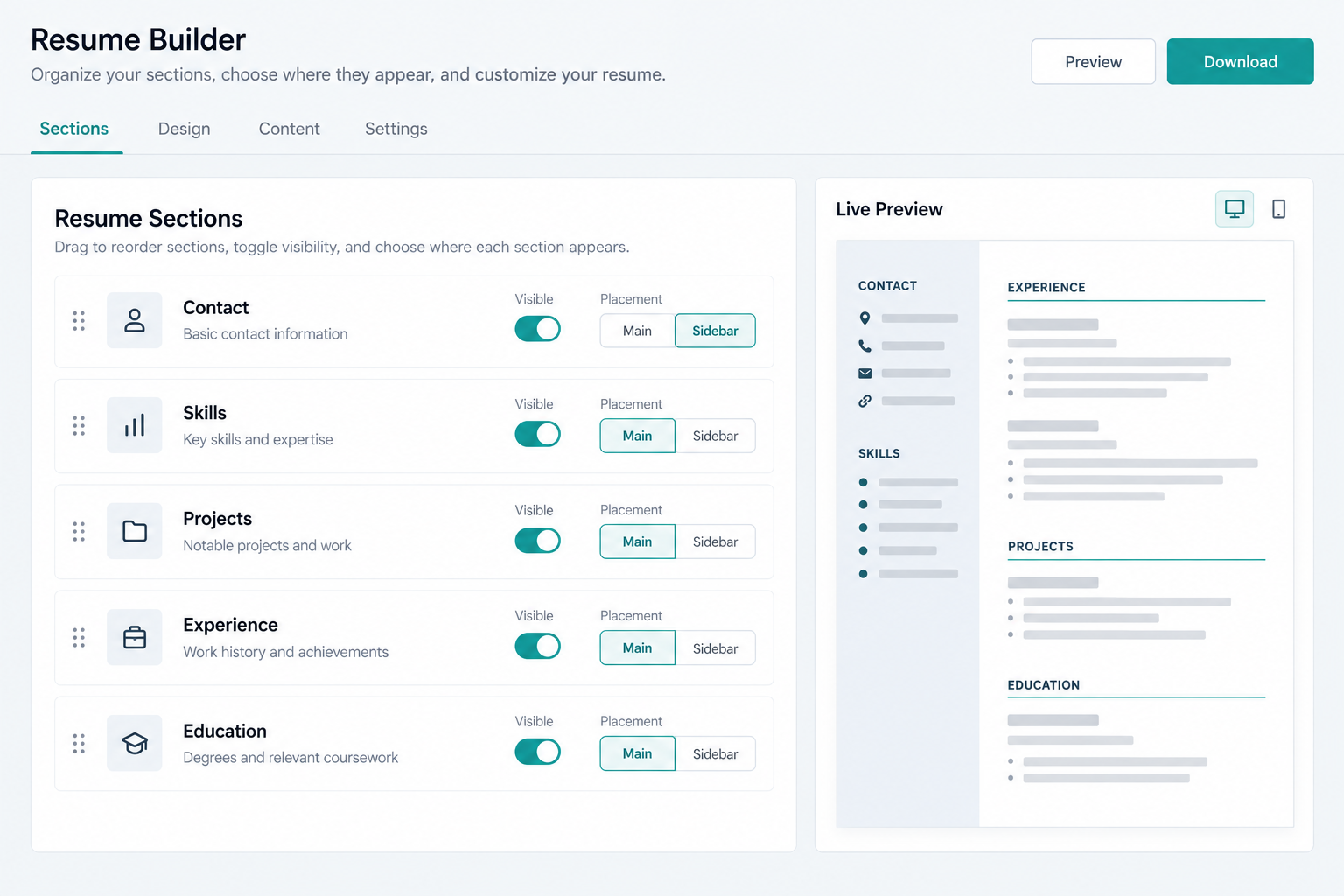
In Resume Sections you can show or hide a section, move it between the sidebar and main area, change its order, and choose a sidebar icon. Custom sections can hold your own fields and items.
Keep the contact section near the top. Use custom sections only for information that does not fit skills, projects, experience, or education.
Example: reorder sections, choose where each one appears, and check the result in the resume preview.Manage resume sections4
Choose style, color, and readable typography
The builder includes ready-made color packs. Use one strong accent color, keep contrast high, and avoid small text. The resume uses a clean professional font automatically; use short headings and plain text for the best PDF result.
Use concise bullet points and short project descriptions.
Keep dates and links accurate.
Preview before publishing to catch empty or overly long sections.
5
Save, edit, and publish
Previewing or generating a PDF saves the selected content for the current role. Open Saved Resumes to continue editing, publish a version, or open its public link.